How to play
You play as Base: the expedition coordinator with the scan overlay and a phone line to Cara. You can steer her directly with the keyboard, or ring her and tell her what to do. Both work at the same time.
Starting the game
- On the main menu, choose Start (the prologue on the canal, which doubles as the tutorial), Continue (the chapter you played last) or Chapters. Tap, or use the arrow keys and Enter; the ⛶ button in the corner makes the menu and the game fullscreen. The world takes a few seconds to build.
- Choose New expedition, or Continue expedition if you have a save. Progress saves automatically in this browser.
- Click the game to capture the mouse. Esc releases it and opens the menu. F or the ⛶ button toggles fullscreen at any time.
http://localhost or https:// (not opened as a file) so that modules, the microphone and pointer lock work. See the README for a one-line server.Controls
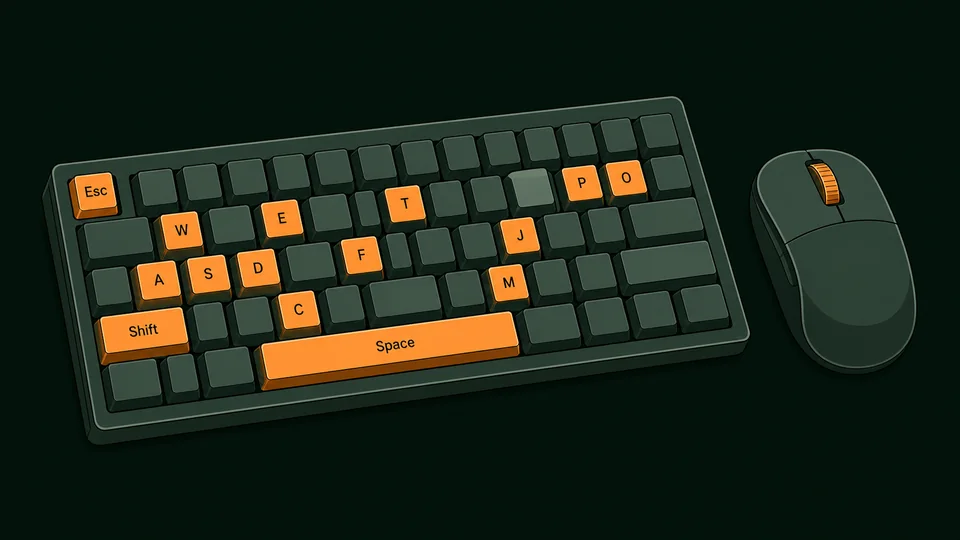
| Key | Action |
|---|---|
| W A S D / arrows | Move, relative to the camera. Cara turns to face where she is going. |
| Mouse | Steer the drone. What you are looking at is the feed from a palm-sized camera drone that follows Cara a few metres behind and above; the mouse orbits it, the wheel brings it in and out, and it drifts back behind her while she runs (can be turned off in Settings). She knows it is there, and on a call she can talk about what it can and cannot see. |
| G / 📦 | Send the supply drone. A cargo drone flies in from base and lowers a crate beside her; walk up and press E to open it. It needs about a minute and a half before it can fly again (the button shows the countdown). |
| R / 🚁 | Fly the drone. The camera leaves her shoulder and you fly it anywhere in the level to scout: movement keys fly, the mouse turns, Space climbs, E or Q sinks, Shift is fast and the wheel sets the speed. Markers show where she is and where the objective is. Aim with the middle of the view; the label under it says what a click will do. Click to send her there (the laser marks the spot; she climbs, or uses the thing), right-click to only mark it, Enter sends, Backspace clears. Press R again, 🚁 or Esc and it flies back to the view behind her. |
| Shift | Sprint. |
| C / Ctrl | Walk carefully (good on logs and ledges). |
| Space | Jump. Jump at a ledge or a stone block to mantle onto it. |
| E | Interact with the highlighted object: pick up, read, place, enter. Anybody in a level can be talked to, animals greeted and vehicles looked over. On the console’s map, a ★ marks a place with a story: ask Cara about it, from anywhere. |
| P | Show or hide the console: your own screen, with the call, the objectives, the map, the journal, the items and the codex. Hiding it does not end a call. |
| T | Start the call; press again to end it. The green 📞 button at the top right does the same on any device, without opening the console. |
| M J O I | Open the map, the journal, the objectives, or the items you have found, in the console. |
| K | Open the newest note in the corner: a long note (a place, a find, a quest done) comes as an icon and a title; click or tap it to read it. |
| V (hold) | Hold to talk during a call, when Hold to talk is chosen in Settings → Microphone: she hears you only while you hold. Calls are hands-free by default, with a Mute button on the call screen (🎙️ on a tablet). |
| H or 📹 | Video call: her phone’s camera, in the same world. It works while you play, from the pause menu (which has a 📹 button of its own), from the start screen, and straight from the main menu’s Video call. Press it again, or Esc, to go back to the field view. |
| F | Toggle fullscreen. |
| Esc | Pause menu / release the mouse. Also closes the console, and leaves a text box so the other keys work again. |
Traversal
- Mantling. Run at a waist-high wall and Cara steps up. For anything higher, jump towards it: if the top is within reach (about 2.3 m) she grabs it and pulls herself up. The east cliffs are climbed this way, block by block.
- Steep ground cannot be walked up; the valley walls are the edge of the world. Look for stone blocks, the log, or the dirt trail.
- Swimming. Walk into deep water and Cara swims (slowly; she is not a fan). Swim to the bank or a block to climb out. The river island is reached this way.
- Falling. Short drops are fine. Big drops hurt; after a very big one she dusts herself off on the last safe ground. Health recovers over time.
- The log crosses the river mid-valley. Walk (C) if you keep falling in.

Home: Marginalia (the prologue)
New players start on Cara’s narrowboat on the canal, the evening before she leaves (Start at home on the front page, or play.html?level=home). Nothing here can hurt you and nothing is timed. The objective card runs Base’s kit check: twenty-two short lessons that between them try every way to play. Each has a hint, the words follow your device (keys on a computer, the screen’s buttons on a tablet), and any of them can be done in any order, or skipped:
- Look all the way round (the mouse, or a drag; the wheel or a pinch zooms).
- Read the kit card on the case by the picnic table (E to interact; it goes into the Journal).
- Run east along the towpath to the humpback bridge (Shift).
- Hop onto the bridge parapet (step-up and mantling; Space jumps).
- Cross Wootton Lock on a gate footboard (careful walking, C).
- Say hello to Maggie, the lock-keeper (people, and what they have to tell).
- Swim across to Arthur’s bench on the far bank (swimming, climbing out).
- Sit on Arthur’s bench (E, and again to stand).
- Try a move from Poses & moves (B).
- Pick up a find, and look at a place with a story.
- Back on the boat, put the kettle on and read the first page of Mom’s notebook.
- Switch on the head torch (L) and open the console at its Map (P, M).
- Let the objective card walk her up to the oak (N, then Take me there).
- Call in the supply drone (G) and open its crate.
- Fly the camera drone (R) and send her somewhere with its laser (click a spot).
- Call Cara (T) and make it a video call (H); both need a voice key.
- Turn in at the cabin door. The next morning is Chapter One.
Everything on the boat can be examined: the letter, the chess game with her dad, the ropes, the photo, the record, Benny’s postcard. Read them for the story, or skip straight to bed; the level is yours to wander.
The goal of Chapter One
- Read your mother’s notebook at the survey camp (south end, where you start).
- Find the three Sun Stones: on the Watcher’s ledge above the east cliffs, on the river island, and inside the ruined shrine in the west grove. Stelae (carved standing stones) near each one tell the legend; reading them fills your journal.
- Climb the temple stairs at the north end, next to the waterfall, and place the stones on the altar. The gate sinks into the floor.
- Walk through the gate onto the Sunken Stair. Six hidden jade tokens are scattered around the valley for the completionists.
The console’s Map shows the scan overlay with landmarks, Sun Stones and Cara’s position; Objectives tracks the list; the Journal collects what she has read.
The goal of Chapter Two
Start it from the front page (Chapter Two) or straight from the Chapter One completion screen. Cara arrives at the foot of the drowned stair, above a flooded court.
- Swim east to the east terrace, climb its steps and turn the sluice wheel (E). The water drops and uncovers the causeway.
- Walk the causeway to the north gallery and turn the second wheel. The plaza dries out and the grille to the lower gallery lifts.
- Find the lower gallery off the west side of the court and read what your mother left there.
- From the plaza, follow the west channel walkway to the west terrace and turn the last wheel. The court drains to the bed.
- Go down to the bed and read the Sun Boat, then climb the outflow tunnel in the north-east to daylight. The way out is only safe once all three wheels are turned.
Six numbered survey tags (IH-1 to IH-6) mark her mother’s route for the completionists, and three ledger stones tell what the court was for. Your head torch is on all chapter; the blue fungus and the glow-worms light the rest.
Chapters Three to Five
Chapter Three — San Aurelio. A hill town and a collector’s museum. Read Benny’s note at the Foundation office, photograph the loan papers in the archive, get into the museum over the roofs (jump at the office awning, then the balcony, then the roof; the west row leads to the cathedral aisle, the nave, and the museum wall), read the Río Calmo stela, lift the gate bar, photograph the crates on the quay, and hand the dossier to the Institute before six. Six catalogue pages to collect.
Chapter Four — The Salt Shrine. Follow the railway into the nitrate town, read the stationmaster’s log, cross the salar past the lagoon to the canyon, climb the rockfall, document the sun disc at the shrine, and take the cut steps to the rim. Long distances: sprint on the flat. Six nitrate tokens to collect.
The winter before — Tryfan. A standalone winter mountain-rescue callout, set the Christmas before the story begins. Follow the cairns to the Heather Terrace, climb it to the bowl, scramble to the summit, jump from Adam to Eve (mantle the step boulder, then Adam, then jump the gap), follow Sam’s dropped kit down the north ridge and find him in the hollow. Above the terrace the cloud closes in.
Twenty campaigns
Every chapter plays on its own from the chapter select on the main menu, or the Chapters button on the start screen, with its own save and its own start and completion screens; each chapter’s tile says whether it is not started, under way or complete, and finishing a chapter offers the next one in its campaign. The buttons above the campaign tabs choose the kind: Cara’s Story, her own — her mother’s map and her father’s coast; Real places, real sites with real facts as she reads them on the ground; Legends, real places and the stories told about them, where the place is real, the tale is a tale, and she always says which is which; and Fantasy, places no map has, with stories of their own.
The courses have a menu of their own, apart from the adventure: Learn with Cara on the main menu holds Field School (Maths, Science, Geography, Calculus, History and Nature Week), Night School (Physics Field Week) and College (Algorithms Week): light learning, just for fun, with a whiteboard at every stop and nothing to fail. A course's own Main menu links lead back there, and its trophies have a group of their own.
- The Sun Stones (a prologue, seven chapters and a winter prequel): the last page of her mother’s volume twelve has been unfinished since 2003, and Cara sets out to finish it in secret, as a present for her mother’s twentieth season. Seventeen days: the valley, the cavern, San Aurelio, the salar, back to the Río Calmo, the collector’s lake house at midnight, and the night of the second of November in Oaxaca. The prologue is the evening before she flies out, nine days before the rains close the Río Calmo season; Tryfan, a winter callout with her father, is set the Christmas before.
- The Lantern Coast (five chapters): a 1789 letter about “the chain of lamps” along Britain’s Atlantic edge: a tidal cove, a flooded tin mine, an island broch, a storm-bound lighthouse and a sea stack. Ringing a bell turns the tide; a pump drains a pit; beacons open a howe; a lamp sweeps the sound; a crux ledge asks for steady hands.
- The Morning Star (five chapters): the sequel to the Moon Stair, planned with her mother in volume sixteen: five places on the road of the Morning Star in the week Venus stands highest before dawn, from 28 December 2026 to sunrise on 3 January 2027. A tower window that frames it, a painted count up a cliff, a bell rung over the roofs on New Year’s morning, a star found in the noon sky through a stone, and a night climb to the summit for the sunrise.
- Nobody Left on the Hill (five chapters, Idris’s Story): Easter week 2027 in the Ogwen Valley with Cara’s godfather, Idris Lloyd, sixty-one and the mountain-rescue team’s oldest new recruit. His grandfather’s cottage under Tryfan and a ewe on a ledge, a stretcher lowered down a crag at dusk on training night, a spaniel under the Devil’s Kitchen in Cwm Idwal, an overdue walker found snug in the Foel Grach refuge on a starry night, and his birthday on Tryfan’s summit, where he steps from Adam to Eve at last. Whoever you pick takes the field; nobody is ever left on the hill.
- México: Cities of the Sun (five chapters): Monte Albán, Teotihuacan, Palenque, Chichén Itzá and Paquimé, stylised and scaled, with real facts in the journal, the inspect texts and six field cards per chapter. Where a site no longer lets visitors climb a monument, the field school has a permit in the story and says so; check the facts with INAH before treating the game as a textbook.
- Pakistan: The Indus Book (five chapters): Mohenjo-daro, Harappa, Taxila, Takht-i-Bahi and Lahore Fort, with Hira, documenting five thousand years of water engineering for her father’s book: the Great Bath and the drains, Wheeler’s wall, the stupas of Gandhara, a monastery’s lost tank, the Sheesh Mahal. Stylised and scaled, real facts in the journal and on six collectibles a chapter, hedged where scholars disagree; check them with the Department of Archaeology and UNESCO before treating the game as a textbook.
- Perú: The Water Road (five chapters): Cusco, Sacsayhuamán, Ollantaytambo, Moray and the salt pans of Maras, and Machu Picchu, with Wren on the rope: the municipality wants the Inca channels that still carry water mapped before a pipeline, and an engineer’s 1978 survey left forty-one brass pins to find, ten a chapter, each with a fact. The dense ones: twelve to sixteen objectives a chapter, a city, a ridge, a living town, two bowls and a hill of salt, and a stair up Huayna Picchu for the last pin.
- England: The Matter of Britain (five chapters): Tintagel, Glastonbury, Cadbury Castle at night, Winchester and Stonehenge at the solstice sunrise, in the five days before midsummer 2026, with Idris as the safety lead on a television series whose presenter keeps finding things. Cara reads each find on camera and says what is wrong with it; the true history, from the king’s island at Tintagel to the Altar Stone from Scotland, is in the journal, the inspect texts and Morwenna’s fifty Polaroids, ten a chapter, each with a fact. A cave through a headland at low tide, a walk-in cathedral, four lines of rampart by torchlight, and a sky that lightens to the sunrise as the last chapter goes on.
- Greece: The Games Dial (five chapters): Athens, Delphi, the Isthmus, Nemea and Olympia, five days in April with an archaeologist building a working bronze model of one dial of the Antikythera mechanism for a schoolroom: the four-year ring that names the four crown games. Cara is the epigrapher, taking fifty paper squeezes of real inscriptions, ten a chapter, each with a fact, and measuring all four ancient running tracks, which are all six hundred feet long and none of them the same length. The earliest written music there is, a wall covered in the records of slaves being freed, a starting gate worked by cords, a tunnel with the athletes’ names scratched in the plaster, and a dial that clicks over at the finish line.
- Nigeria: The Lost Wax (five chapters): Nok and the Jos Plateau, Igbo-Ukwu, Benin City, Ile-Ife and Lagos, five days with Nkechi Adeyemi and three thousand years of clay and metal, writing the homecoming file for a copper-alloy head an English saleroom had catalogued as modern.
- China: The Post That Got Through (five chapters): the Mogao Caves, the Jade Gate, Xi’an, Longmen and a reading room in Beijing, five days in April following half a letter written at Shazhou in the autumn of 767 east along the road it took, to find out whether it ever arrived. A palaeographer of seventy-one says it is a modern fake, and the paper, the road, the seal and the date answer him one at a time. Fifty finds: forty rubbings she beats out herself and, at the Jade Gate, ten Han wooden slips.
- Egypt: The Names on the Wall (five chapters): Giza, Saqqara, Karnak, the Theban west bank and Abu Simbel, five days in February making a travelling exhibition for schools with a Ministry inspector whose rule is one name a day, read off an object. The sponsor’s man wants to call it Secrets of the Pharaohs; the week finds five better names, none of them a king — Merer, Imhotep, Amenhotep son of Hapu, the scribe Amennakhte, and the people who cut two temples into a thousand blocks and carried them up a hill. Fifty ostraca, ten a chapter, and a sunrise down the axis at the end of it.
- Türkiye: The Order of Things (five chapters): Göbekli Tepe, Çatalhöyük, Hattusa, Ephesus and Cappadocia, five days in May rewriting five wall panels for a gallery in Ankara that has until seven o’clock on Saturday to print them. The widest span of time any one country holds: a temple raised before anybody farmed anything, a town of several thousand people with no streets and no doors, a treaty from about 1259 BC that both courts kept a copy of, a library with the man it commemorates under the reading-room floor, and an underground city with a stone door that only closes from the inside.
- Cambodia: The City Under the Forest (five chapters): Angkor Wat, the Bayon, Ta Prohm, Banteay Srei and the quarries on Phnom Kulen, five days in March ground-truthing thirty squares off a laser survey that took the trees off the map and found a city under the forest. The sheet has two columns, what the laser says and what is actually there, and the last square turns out to be a pond in a village with ducks on it that somebody still cleans out every March.
- India: The Gift of the Ivory Workers (five chapters): Sanchi, Ajanta, Ellora, Mahabalipuram and Hampi, five days in March with a curator who has four days to work out what her exhibition is about and a funder who wants a title by Friday. The question at every site is not when it was built or who ordered it, but who paid for it and who did the work — and the answer is cut into a railing post on the first morning, in four words nobody photographs. Fifty rubbings, ten a chapter, each with a fact: eight hundred donors who are not kings, a hall cut from the ceiling down and painted on mud and rice husk, two hundred thousand tonnes carried out of a hole in baskets, five temples that all stopped on the same Thursday, and a city split off its own hillside with the wedge holes still in half the boulders.
- Iceland: The Saga Road (five chapters, Legends): Reykholt, Eiríksstaðir, Arnarstapi, Hlíðarendi and Þingvellir, five days in June with a storyteller, her father who drives the van, and her nephew Kári, who is ten and wants to know whether any of it is true. A Legends campaign keeps one promise: the place is real, and the tale is a tale, and Cara always says which is which. So the notebook has two columns for every place, what you can see and what they tell: Snorri’s hot pool and Thor with his feet through the bottom of a boat, a thousand-year-old hall and a country named to sell it, a glacier and the half-troll who lives in it, a mown hillside and the man who turned his horse for home, and a wall where two continents are pulling apart, with the law spoken under it. Fifty place-names, ten a chapter, and on midsummer night five tales told from the Law Rock to forty-one people on folding chairs, in a sky that never gets dark.
- Sri Lanka: The Squirrel’s Stripes (five chapters, Legends): Hakgala, Ella, Ussangoda, Rumassala and Mannar, five days in March on the Ramayana trail with a dance teacher, a retired engine driver and his granddaughter, who is twelve and dancing Hanuman for the first time. The school is dancing the Ramayana in five scenes with backdrops painted from life, so Cara sketches what is really there, and the story goes on top: a bright kovil by a stream and a ring dropped into a lap, nine stone arches with a train coming out of a tunnel and a king with ten heads, red earth that is a quarter iron and a tail on fire, a hill of healing herbs and a monkey carrying a mountain, and sandbanks running away to India. The Ramayana is told as the Ramayana, sacred to many people, and never as history. Fifty sketches, ten a chapter, and on the last evening a dress rehearsal on the beach at sunset, where the smallest dancer is the squirrel.
- The Silk Road: The Peach Banquet (five chapters, Legends): Yulin, the Flaming Mountains, Gaochang, Khotan and Tianchi, five days in August along the road the real monk Xuanzang walked west, the road Journey to the West turned into eighty-one ordeals, with a retired Monkey King of the Peking opera, his granddaughter, who is ten and does the somersaults, and her mother, who looks after old paintings. Taotao has drawn two maps, red for the road the monk really walked and gold for the road in the novel, and colours a place in only when she has been: a monkey painted on a cave wall three hundred years before the book, red mountains with a golden thermometer shaped like a cudgel and a fan that puts out fire, a city of earth where a king knelt for a monk to step on, a river of jade and a princess with silkworms in her hat, and a lake under the snows called the Jade Pool. Fifty records, ten a chapter, and on the last evening a Peach Banquet by the water, to which, unlike the one in the novel, everybody is invited.
- Ireland: The Music of What Happens (five chapters, Legends): Drombeg, the Hill of Allen, Brú na Bóinne, Slieve Gullion and the Giant’s Causeway, five days in May north through the places the Fianna knew, with a storyteller who is turning eighty, her daughter who digs for a living, and her grandson, who is eleven, plays the tin whistle and says nothing ever happens to him. Fionn said the finest music in the world is the music of what happens, so he records it: a cuckoo and a hot stone at a circle aimed at the midwinter sunset, the tests of the Fianna on a hill with a tower on it, a tomb older than the pyramids with the sun on a string and a salmon that burned a boy’s thumb, a lake on a mountain that turns your hair white, and forty thousand columns of basalt where a giant hid in a cradle. Fifty sounds, ten a chapter, and on the last evening a session on the Causeway at sunset, for Nana’s eightieth.
- Sherwood: The Silver Arrow (five chapters, Legends): Robin Hood’s Bay, Fountains Abbey, Creswell Crags, Nottingham Castle and Sherwood Forest, five days at the end of August south from the Yorkshire coast to the Robin Hood festival, with a girl of twelve who shoots a longbow, her cousin and rival from Wakefield, and her grandad, the festival’s Sheriff for thirty years, whose last day it is. Nobody knows what the “rymes of Robyn Hood” of 1377 said, so she writes fifty new ones, one for every real thing: a bay named after him before 1346 and the scars at low tide, an abbey of monks and a friar who never lived there, Ice Age pictures in a cave on a county line, a castle rock full of caves and the real Sheriff, and a forest of ancient oaks with the Major Oak standing bare among them. What is real, what the tales tell, and which is which; and a silver arrow with a golden head.
- The Galápagos: The Albatross Page (five chapters, Wild Places): El Chato, North Seymour, Genovesa, Bartolomé and Española, five landings in five days at the end of October on a small boat, with a grandfather who fed baby tortoises at the Research Station in 1977 and his granddaughter, who draws everything. His notebook has forty-nine pages and one blank one, for the albatrosses of Española, which were away at sea when he went. Wild giant tortoises in the highland mist, frigatebirds with red balloons, boobies with blue feet and red ones, penguins on the equator, a blowhole, and, at the end of the last afternoon, the albatrosses dancing. Every animal, plant and rock is real; fifty sightings to draw, two metres from all of them.
- The Serengeti: Nyota’s Year (five chapters, Wild Places): Ndutu, Seronera, the Grumeti, Kogatende and Naabi Hill, one year of the great migration. A boy of eleven at the research centre picks one dot on his mother’s map, a collared wildebeest cow he calls Nyota, and follows her all the way round: the calving plains in February, the rut in May, the Grumeti and the Mara crossings, and home with the short rains, where, at dawn at the end of January, her new calf stands up in six minutes. Herds to the horizon, giraffes, elephants wading the Mara, a leopard asleep in a sausage tree, cheetahs on a kopje; every animal, plant and rock is real, and the rangers’ rules are everybody’s.
- The Great Barrier Reef: Upside-Down Snow (five chapters, Wild Places): Lady Elliot Island, Lady Musgrave Island, North West Island, Heron Island and Heron Reef, two weeks on the southern reef in November. A coral scientist checks her tagged corals on four coral islands for pink eggs, with her daughter Isla, ten, who keeps a slate of sightings, and her son Finn, fifteen, who has read online that the Reef is dead: a plane that lands on grass, mantas at a cleaning station, a lagoon a boat can sail into, a turtle going home to the sea at sunrise, a shark that walks, and on the sixth night after the full moon, under the water in the dark, the corals spawning like snow falling upwards. Every animal, plant and rock is real, and the Marine Park’s rules are everybody’s.
- Mývatn: The Sky’s Turn (five chapters, Wild Places): Skútustaðagígar, Dimmuborgir, Hverfjall, Námafjall and Krafla, five days round Lake Mývatn in north Iceland at the start of October. Kit, ten, stays with his grandmother, who has kept a notebook of the ground’s fires since she was twenty, and his cousin Sól: craters that are not volcanoes, the pillars of a lava lake that drained away, a crater a kilometre across, boiling mud and steam inside the ropes, a hot blue pool in a crack in the earth, and the black lava of the Krafla Fires, where the notebook began; and on the first dark night, with the moon gone down, the northern lights over Víti. Every animal, plant and rock is real, and so are the rules of the hot ground.
- The Amazon: The Clay Morning (five chapters, Wild Places): Lake Sandoval, the Brazil-Nut Forest, the Canopy Tower, the Night Walk and Chuncho, five days in the Tambopata National Reserve in south-east Peru in November. Mayra, eleven, has a notebook of fifty sightings to fill, and has never seen a clay lick: giant otters shouting across a lake, brazil nut trees fifty metres tall, a tower above the forest at sunrise with the howlers roaring, frogs and a caiman’s shining eyes on the darkest night of the month, and on a dry dawn at Chuncho the parrots and macaws coming down to the clay, in pairs. Every animal, plant and river is real, and so are the reserve’s rules.
- The Wendlands: The Hundred-Year Sulk (five chapters, Fantasy): a storybook land Cara reaches by unfolding an old map on the kitchen table. A mailbag of invitations to the Lantern Moot spent a hundred and five years under a post-office floor, and five peoples have been politely not speaking ever since; she delivers them, from a valley of round doors to an ash coast of giant glowing mushrooms and house-sized walking creatures, a moonlit silver forest, a city cut into a rift, and a gorge where two stone kings hold up their hands. Everything in it is invented, nobody is a villain, and nobody was ever uninvited.
- The Gloamwold: The Five Courtesies (five chapters, Fantasy): a storybook land Cara reaches through the blank last pages of an old book. The Order of the Hearth, whose one rule is to keep every hearth warm, has had no knights for two hundred years, until a squire of twelve turns up with a wooden sword, a saucepan for a helmet and a hound the size of a pony. Cara goes with her as chronicler, keeping five courtesies on the road: courage at a ruined fortress with a beacon to light, kindness at a lake village with a windmill that has lost a sail, wisdom at a tower of lamp-makers on an island, patience in an old wood with an oak who says one word an hour, and honesty at a temple in the snow, where a stone knight asks one question and an old dragon in reading spectacles has been keeping the hearth lit. Everything in it is invented, and nobody gets left out in the cold.
- Fernholm: The Egg Thief (five chapters, Fantasy): an island that is on no map, where the dinosaurs never went away, reached by picking up a warm fossil egg on a museum’s handling table. Its keepers have one rule, the animals have right of way, and this week there is an egg in the Hatchery that is on nobody’s list and a small black and white feathered dinosaur everybody calls the Egg Thief. Five days from a harbour with a hall of bones, across a plain of ferns with no grass on it, down a river with a Spinosaurus in it and up to red rock full of fossils, to the warm top of a sleeping volcano. The island is invented; the animals are all real, and everything anybody says about them is true.
- Tessary: The Borrowed Beacon (five chapters, Fantasy): a country where everything is made of blocks a metre on a side, the sun included, reached by picking up a plain wooden block with a star cut into it from a museum’s toy box. Everything in Tessary is lent, not owned, and three hundred years ago the keeper of the beacon on the mountain in the middle lent its blocks to the villages that needed them. This week a boy of eleven is borrowing them back for one night, Lantern Night: nine iron blocks from a village with a bell tower, twenty-five gold from a town dug down in steps, forty-nine emeralds from a desert market that weighs everything, and eighty-one diamonds from a lighthouse on a frozen lake. Every village has a problem to solve before it can lend them, and every answer is a little real science: quartz that keeps time, water that weighs what it weighs, a lens made of ice.
- Mathland: The Great Round (five chapters, Fantasy): a country where mathematics is the mother tongue, after Seymour Papert’s idea that you could learn maths the way you learn French by growing up in France, reached through a door a yellow floor turtle draws in chalk in a museum’s computing gallery. People give directions as turtle instructions and count their age in turns round the sun; the turtles are floor turtles that are also creatures, with a stick of chalk in their middles. This week Penny, a young turtle who is superb at straight lines and has never drawn a curve, must draw the Great Round, a circle the whole land walks together. Five days: Turtle Talk and playing turtle, polygons and the Total Turtle Trip, gears and the differential, spirals and knowing when to stop, and a bug on Round Day that everybody finds together. Speak or type Turtle Talk to her (“REPEAT 4 [FD 5 RT 90]”) and she walks it; on the dark slates in the grass everything she walks is drawn in chalk, and a dial adds up her turning.
Today’s Expedition
A small job every day, in one of the adventure’s chapters, the same for everybody on the same date: Today’s Expedition on the main menu. Some days somebody has lost four things round the chapter and you find them; some days it is a dash to a place named when you set out; some days it is one of the chapter’s games to win. Three stars: the job done, done inside par, and the day’s rare find, somewhere off the path (it glints, and nothing points at it). The expedition keeps a save of its own, so your chapters are never touched, and a logbook keeps every day’s stars. Miss a day and it is a rest day, once a week: the streak goes on. On a call, Cara knows the day’s job.
Poses and emotes
Press B for a popup of poses she holds (sit, kneel, crouch, lie down) and short emotes (wave, thumbs up, point, cheer, hands on hips, shrug, bow, think, stretch, look around, salute, clap, dance, take a photo). Any movement stands her up again. On a call you do not need the popup: ask her to sit down for a chat, to wave, to take a rest, and she will; she will also do some of it unasked when it fits the moment, and no more than that. Stairs are climbed at a stair pace with a proper gait, and she keeps her feet on steps going down rather than hopping.
How she feels
Her watch. The panel at the bottom left is Cara’s watch, streamed to you with the drone feed. It shows her pulse (it climbs with effort and with nerves, jumps after a hard fall, and comes down when she rests or when you talk her through something calmly), how she is in a word with a tip for what helps, her condition and energy, the temperature and altitude, the supply drone, and any supplies working on her. Trust sits on the call pill under it while you are on a call. Players under 13 see words instead of numbers; ⚙️ Settings → Game changes that.
Cara has feelings, and they show. There are three, and each is a spectrum with a name at both ends: Nerve → Confidence, Inspiration → Spark and Trust → Bond. Every level is part of the game, the wobbly ones too, because a brave person is somebody who was nervous first, and because naming a feeling is the first step to moving it. Alone she is capable: she finishes every chapter on her own. With a good voice on the line she is brilliant.
Nerve → Confidence
Her body under pressure. A hard fall or a bad ledge sends it down; clean moves, calm words and things going right bring it up.
| Level | What it is like | What helps |
|---|---|---|
| Shaky | Hands not steady, short steps, a pause before a jump, no reach for the highest holds, slow on planks and beams, and no long drops. The body’s brake is on: that is information, not weakness. | One slow breath out, longer than the breath in. One instruction at a time (“left foot, then the ledge”). “I’m here.” |
| On edge | Butterflies: quick to startle, double-checks every hold. A little edge sharpens you; this is a little too much. | Name the next hold, not the drop. Say what is going well. |
| Steady | Clean jumps, full reach, quiet hands. Where she lives most days. | Keep doing what you are doing. Silence beside her is fine. |
| Confident | Moves as if she has done it before, takes the bold line and tells you why. The top of this spectrum is Confidence. | It is earned, not given: it follows calm, specific help and things going right. Confidence still checks its knots. |
Inspiration → Spark
Why she is here. Finds, readings and progress lift it; being stuck or ignored lets it run down.
| Level | What it is like | What helps |
|---|---|---|
| Flat | Dragging her feet, short answers, will not sprint. Not sadness: an empty tank. | A rest, a hot drink from the supply drone, a reason: what this is for. |
| Level | Getting on with it. | A find, a reading, a question about what she can see. |
| Inspired | Keen: volunteers, notices things, pushes for the objective. | Curiosity back from you. |
| Full of spark | Ideas faster than her pencil, jokes, sees the pattern. The top of this spectrum is Spark. | It is catching: enjoy it with her. |
Trust → Bond
You and her. It is built by how you talk, one call at a time.
| Level | What it is like | What helps |
|---|---|---|
| Wary | Barked orders are ignored; she wants another way. | Ask, do not tell. Say sorry if you pushed. |
| Reserved | Polite, professional, careful. | Be clear, be kind, keep your word. |
| Trusts you | Follows a hard ask, and says so once. | Deserve it. |
| Bonded | Takes your word on a drop she cannot see the bottom of, and tells you things. The top of this spectrum is Bond. | It was built one good call at a time. |
What moves them. On a call your voice moves her more than anything: patience, specific praise, calm step-by-step instruction and a reminder of why she is here settle and lift her; hurrying, shouting and mockery shake her and cost her trust in you. Praise repeated every few seconds stops working. Left alone she recovers, slowly. If she is shaky and flat for long enough with nobody on the line she walks back to camp for a breather; a word brings her back. The phone shows one line under her name about how she is doing, and there are trophies for steadying her and for reaching the top of each spectrum on a call. Switch feelings off in Settings if you prefer her always steady.
Flying the drone
The camera drone does not have to stay at her shoulder. Press R or 🚁 and you fly it yourself, anywhere in the level: scout the roofs before she climbs them, find the way round a gorge, or watch her walk a route you asked for from above. She keeps doing whatever she was doing, voice commands included, and she knows the drone has gone. Orange and green markers show where she is and where the objective is, even when they are behind you. On a phone or tablet the stick flies it, a drag turns it, ⤴ climbs, ✋ sinks, 🏃 is fast and a pinch sets the speed. Press R, 🚁 or Esc and it flies back to the view behind her. In the Drowned Court it stays under the cavern roof.
The laser. In free flight a small reticle sits in the middle of the view, with a label under it for what a click will do: “Walk here”, “Climb to the balcony”, “Read the ledger”, “Swim here”, “Too high to climb” or “No ground there”. Click and the drone’s laser fires at the spot for a moment, and a green light column goes up there and stays until she arrives: she is told and sets off, climbing if she has to and using the thing when she gets there. Right-click only marks it, so you can tell her “go to the marker” on the call; Enter sends her too and Backspace clears the mark. On a phone or tablet, tap the spot.
The supply drone
You are Base, and Base has a second drone: a cargo hexacopter that brings Cara a crate of supplies. Press G or 📦, or say you are sending it on a call. She sees it come in from the direction of base, it lowers the crate on a line a few metres from her and flies home; she walks over and opens it (E, or “open the crate”).
Base packs what she needs most at the moment the crate opens: a first-aid kit when she is hurt, coffee or chalk when she is shaky, energy food when she is flat, fresh torch batteries in the dark chapters, hand warmers or cold water where the weather calls for it, and now and then something from someone in the story. On a call you can dictate a note to go in the crate, and she reads it out. Effects are real but modest: health comes back, her nerve and spark lift, chalk steadies her hands on climbs for three minutes, energy bars let her sprint when she is flat. Words on the line still matter more.
After a delivery the drone needs about a minute and a half before it can fly again; the button’s shade shows how long. It cannot reach her underground (the Drowned Court), under a roof or in deep water, and it will not drop a second crate while the first is still unopened nearby. Hard falls cost health, and below 30 she limps; sitting or lying down heals fastest, a first-aid kit at once.
Off the path
Every chapter hides more than its objectives. Leave the path and you will find places off the map (a strangler fig that swallowed a carved stone, a plane in the trees, a spring as blue as glass) and finds: small things you have to look for. Metal, glass and paper catch the light when Cara is close and you look their way; the rest you have to spot (Settings → Game → Finds off the path can make every find sparkle, or none). Some are things people dropped or left, and tell you their story: a torn page, a used battery, a roll of film. Some are what the place grows or sheds: a fruit to eat (a little energy), a feather, a fossil, an orchid nobody has named. Living things and anything sacred or ancient are photographed and left where they are. A few finds make up a set; finish one and Cara writes a page about it in her journal. The ✦ counter at the top shows how many you have found.
Talk to people more than once. Each time, they tell you something new: who they are, their work, the place, a legend, and rumours of the places off the map (which then appear on the phone map as a dashed circle). When they have told you everything, they will tell you who else to ask. On a call you can ask Cara to ask them about something in particular: themselves, the place, rumours, or the way.
The console’s Codex keeps it all: your finds and sets, the places you have found or heard of and what you have learned about them, and everything everybody has told you.
The console
Cara also talks to herself: effort sounds when she climbs or lands, muttered remarks when she finds something, voice-diary entries when she reads her mother’s notes or a stela, and field-note readings for anything she has examined (console → Items, or the ▶ buttons in the Journal). These recorded lines pause while you are on a call, and can be switched off in Settings.
Press P. The console is your own screen, not a phone in her hand: a window over the world on a computer or an iPad, the whole screen on a phone, with a rail of apps down the side (a bar along the bottom on a phone). Call has a big Call Cara button, and during a call a live transcript of both sides, a waveform, mute, the talk button and End. You can hide the console and keep playing; the call carries on and a small pill in the corner shows it is live. Cara’s speech is subtitled at the bottom of the screen (Settings → subtitles).
On a phone or tablet
Touch controls switch on by themselves on iPhone, iPad and Android (Settings → Game → Touch controls to force them on or off). Drag anywhere on the left half of the screen to move: a light push walks, a full push jogs, and the 🏃 button toggles running. Drag on the right half to look around; pinch to zoom. The round buttons are ⤴ jump (and climb ledges), ✋ use (the prompt at the bottom is tappable too) and 🏃 run; on a call a 🗣️ talk button appears above run: hold it while you speak. Calls are hands-free until you first hold it; from then on she hears you only while you hold (the pill under the phone's talk button switches back). The console, poses and menu buttons sit top right. In free flight the buttons become the drone’s — ▲ up, ▼ down, 🏃 fast and 🚁 back — with a height slider beside them: a little push climbs slowly, all the way climbs quickly, and letting go holds the height. Landscape gives the widest view. Calls work the same way; the browser will ask for the microphone.
Talking with Cara
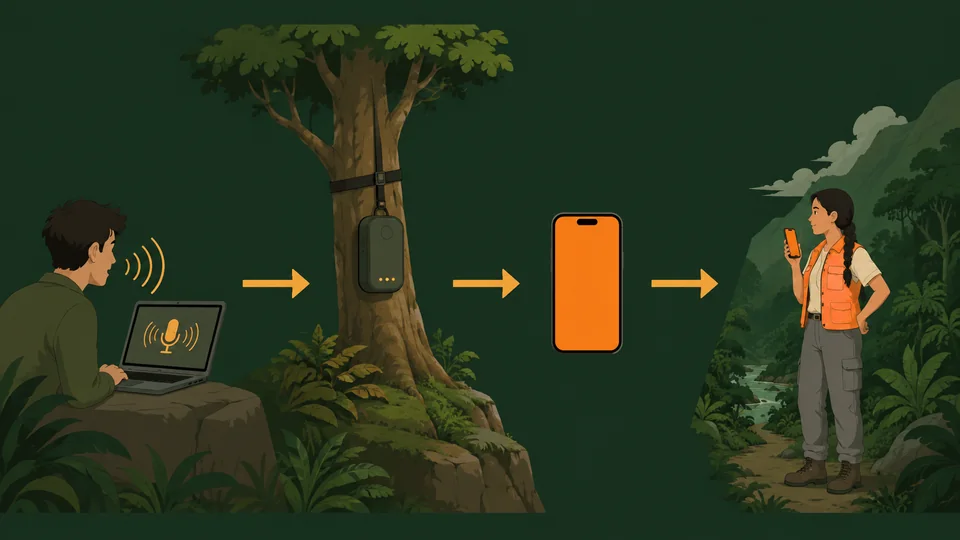
CARA is her name and the name of the format: Call And Real-time Adventure. The player is on a live phone line to a character who is inside a real-time world; the words you say are the game. Everything below is about that line.
The call is the heart of the game. She is a person on the other end of a sat-link, not a remote control: tell her about your day while she sits by the river, ask what she can see, ask about her mother, apologise when you push too hard. While you are on the line she can also act on what you say; those verbs are listed further down.
Voice runs on a real-time voice model, straight from your browser to the provider: Google’s Gemini Live by default, or OpenAI’s GPT Realtime, chosen in ⚙️ Settings. You bring your own API key; nothing goes through any other server (unless the game is hosted with a server that holds the keys for you). You can also take the field leg as Benny Ruiz, Prof. Nkechi Adeyemi, Dr Wren Ashcroft, Dr Hira Qureshi or Idris Lloyd (pick on the start screen): different voice, different nerves, same expedition, with Cara on the radio. The game’s words follow whoever you pick: the objectives, the messages and their own muttered lines are theirs, while Cara’s notes and diary stay hers.
Setting it up
- Create a key at aistudio.google.com/apikey. The free tier is enough to try it.
- Press Call Cara (main menu, or in-game phone), or Video call on the main menu. The first time, a dialog asks for the key. It is saved in this browser’s local storage only. You can view, change or remove it later via ⚙️ Settings.
- Allow the microphone when the browser asks. No microphone, or it is blocked? The call still connects: type on the phone, and she answers out loud and follows what you type as usual.
- She answers. Talk normally. She will interrupt herself if you start speaking (open-mic mode).
Tell her who you are
⚙️ Settings → Player takes your name, your age and your gender, all optional. With a name she calls you by it now and then instead of only “Base”; with a gender she gets pronouns right. Cara is a game for grown-ups, rated 18+. It is stored in this browser only and goes nowhere except into the call itself.
Model and voice
The default is Gemini 3.1 Flash Live, Google’s newest native audio-to-audio model, which sounds the most natural and supports Cara’s actions. Settings also offers the Gemini 2.5 native-audio models (the rolling “latest” alias and the dated previews), plus Cara’s voice. If Google retires a preview model, pick another from the list or type any model id (the list was checked against Google’s model catalogue in September 2026). Settings → Provider switches the service altogether: OpenAI Realtime (GPT Realtime, with its own voices), an experimental Grok option, and an offline mock that lets you try the phone, with a typed line instead of a microphone, without any key.
Long calls
A call can run for hours. The line renews itself every few minutes, waiting for a pause between sentences so she is never cut off mid-word; the conversation carries over, and the context is compressed as it grows so her replies stay quick late in a call. If the connection drops, the phone reconnects on its own (and waits for the network if you go offline); anything that happened in the world meanwhile still reaches her. On a phone, the screen stays awake for the length of the call.
Video calls
During a call, press H or 📹 (on the HUD, or on the phone) to switch to video: the view becomes her phone’s front camera, held at arm’s length, in the same world, and the call carries on. She talks like a friend on a call, and she can walk while she does: ask her to go somewhere and you get a walking selfie, at a walk, with the world going by behind her. Ask her to turn the phone round and you walk with her in first person; ask her to show you something (“point the camera at the table”) and the rear camera turns to it; ask her to show you around and she turns the phone round, pans slowly left and right and comes back to her face; she can also pan left or right, tilt up at the sky or the top of a tower, tilt down at the ground by her feet, take a tall thing from top to bottom, show you what is behind her, give you a wide panorama or turn all the way round (“show me around”, “what is on your left?”, “show me the sky”, “show me behind you”, “show me everything”), and while the phone is already turned round the view stays on the world after the move; ask to see her face and the selfie is back. She can pick things up and read them on video too. She can do everything she does in the field on video, jumping and climbing included, by voice; only the keys and the sticks stay off, so switch back to the field view with 🎮 Field, H or Esc when you want to steer her yourself. Wave, nod, laugh and sit down work as before. You can also start with a video call from the start screen, or from the Sat-Link app (call.html), which rings her wherever your last save left her.
The quickest way in is Video call on the main menu: it opens the chapter she was last in (the prologue if you have no save yet) straight onto the call, with one button, Connect video call. One tap is all it takes (the browser needs it before a page may use sound and the microphone), and she picks up where your save left her, in the game world, with the game running behind the call.
Language
Speak to her in any language. By default she answers in whatever language you use, from your first words, and follows if you switch mid-call; she opens the call in your device’s language. Settings → Language pins one language instead, useful for practising one or when a household shares a browser. The list has English, Spanish, French, German, Italian, Portuguese, Dutch, Polish, Russian, Turkish, Arabic, Hindi, Urdu, Bengali, Indonesian, Vietnamese, Thai, Japanese, Korean and Mandarin, and “Other language…” takes any name you type. The game’s own text, subtitles and her recorded lines stay in English for now.
What you can say
Cara understands plain language. Behind the scenes, these map to actions she can take in the world. Some examples:
| You want | Try saying |
|---|---|
| Move | “Walk forward ten metres.” “Go left a bit.” “Head north.” “Run!” “Stop.” |
| Navigate | “Go to the river.” “Head for the temple.” “Take me to the camp.” “Go to the waterfall.” “Walk to the stela.” |
| Shapes | “Walk in a circle.” “Go forward ten steps and come back.” “Walk a square.” “Do a figure of eight.” “Zigzag ahead.” “Walk round the oak.” “Forward ten, left five, then back.” “Is there room for a big circle here?” She looks over the ground first and tells you whether it fits: if a wall, a tree, water or a drop is in the way she goes round the other way, turns the shape or makes it smaller, and says so, or tells you what is in the way. A star, a heart, a spiral, a triangle, a diamond and an oval work too. |
| Turtle Talk | “Forward 5, right 90.” “REPEAT 6 [FD 3 RT 60].” “TO SQUARE REPEAT 4 [FD 5 RT 90] END.” “SQUARE.” Logo, the language of Mathland’s turtles, spoken or typed: FORWARD and BACK in metres, RIGHT and LEFT in degrees, PENUP and PENDOWN, REPEAT, and new words taught with TO … END. She walks the program, tells you how far she went, how much she turned in all and whether she came home, and if the program has a bug she says what it is. Anywhere, in any chapter; in Mathland the slates draw it in chalk. |
| Look | “What can you see?” “Where are you exactly?” “How far is left?” “Look around.” “Which way is the temple?” |
| Inspect | “Inspect the surroundings.” “Have a look at that stela.” “What’s on the altar?” “Check the notebook.” |
| Interact | “Pick it up.” “Read it.” “Place the stones.” “Go through the gate.” |
| Jump / climb | “Jump.” “Climb that block.” “Jump onto the ledge.” |
| Turn | “Turn left.” “Face north.” “Turn around.” |
| Status | “How are you doing?” “What’s the objective?” “How many stones have we got?” |
| Steady her, and lift her | “Take your time, I’m here.” “Left hand to the ledge, then push up.” “That was clean. You’ve got this one.” “She got this far. You’re going further.” |
| Pace | “Walk from now on.” “Sprint everywhere.” |
| Drone | “Look at me.” “Look into the camera.” “Let me see your face.” “Give me a wide shot.” “Wave at the drone.” |
| Supplies | “I’m sending the supply drone.” “Send supplies with a note: you’ve got this.” “Open the crate.” “Watch it come in.” |
| Just talk | “Tell me about your mum.” “Why did you leave the university?” “What do you make of this place?” |
- She takes the shortest way: every route is planned on a map of the level from exactly where she stands, round buildings, trees and steep ground, swimming only where there is no land route.
- Long walks report back: when she arrives (or gets stuck) the game tells her and she tells you.
- Landmark names she knows:
camp,log bridge,river,island,east cliffs,ledge,west shrine,waterfall,temple,altar. Anything she has just seen with “look around” works too. - Her feelings are real, and each is a spectrum: Nerve up to Confidence, Inspiration up to Spark, Trust up to Bond. After a fall she is shaky and refuses the high hold or a long drop until she has settled; patience and one clear foothold settle her, a good call takes her all the way to confident, and hurrying and mockery cost you her trust. Every level, and what helps.
- Pressing a movement key while she is walking somewhere cancels the voice command; you are in charge, and she notices. A key you were already holding when you asked does not count: let go, and press again to take over.
- She is a person, not a remote control. Ask for something daft and she will say so, then usually do something sensible instead.
Calling from the main menu
The Call Cara button on the main menu (and on the About page) rings her off duty, the evening before the descent. No actions there, just conversation: the expedition, her mother’s notebooks, climbing, her narrowboat, whatever you like.
Troubleshooting
- “Google rejected the API key.” Check the key in ⚙️ Settings and that the Gemini API is enabled in Google AI Studio for that key.
- “The voice model was rejected.” Preview models come and go. Pick another model in Settings.
- No microphone prompt. The page must be on
localhostorhttps. Check the browser’s site permissions for the microphone. Until it works, calls still connect: type on the phone and she answers out loud. - She hears herself / keeps stopping. Use headphones, or choose Hold to talk in Settings → Microphone and hold the talk button (or V) while you speak.
- Low frame rate. Quality is set to Auto by default and drops itself if needed; set it to Medium or Low in Settings for older machines.
- Nothing loads. The game fetches Three.js and fonts from CDNs, so it needs an internet connection on first load.
- Too dark? The night and storm chapters (the Drowned Court, Wheal Dorcas, Skerravoe, Oaxaca) switch her head torch on; L or the 🔦 button switches it in any chapter, and on a call “torch on” or “torch off” does the same. ⚙️ Settings → Game has a Brightness slider for the whole picture and an extra light slider that lifts the whole scene, widens the torch and thins the fog. Turn both up as far as you like; nothing in the game depends on the dark.
- Controls not responding? Closing the phone, a menu or the emotes hands the keys straight back. If the view stops following the mouse, click the view or press a movement key; a hint in the middle of the screen says so when it happens.
- Stuck? She steps free by herself when she is wedged, and the pause menu has Unstick Cara, which moves her back to the last safe ground. On a call, “where do I go next?” gives her the next objective and its bearing, and “go to the objective” walks there.
- Lost? “Where are you?” gets the region she is in, the nearest landmarks with distances, her height, and, if she is on her way somewhere, how far is left and which roofs or places the route passes. A route she stopped part way carries on from where she is when you ask for it again; she never walks back to the start.
- Long calls. The sat-link renews itself every few minutes behind the scenes; you may see “Renewing sat-link…” briefly. Calls carry on for as long as you like. If the line drops, it reconnects automatically and picks up where you were.
- Cara moves stiffly. Her motion-capture animation library (4 MB, CC0 by Quaternius) loads from jsDelivr; if it cannot be fetched the built-in animation is used. Check Settings → Game → “Motion-capture animation rig” and reload.